Overview
django-vrt is designed to provide a reliable and deterministic workflow for visual regression testing. This document explains the core concepts and the lifecycle of a djvrt test run.
The Core Workflow
The entire django-vrt process revolves around a central workflow that ensures consistency and reproducibility. This workflow consists of four main stages:
- Discover:
djvrtinspects your Django project to find URLs to test. - Lock: It compiles a deterministic "plan" of all test variations into a lockfile.
- Baseline: It captures the initial "correct" screenshots for this plan.
- Check: It captures new screenshots and compares them against the baseline to find regressions.
This workflow is designed to be run repeatedly, especially in a Continuous Integration (CI) environment.
1. Discover
The discover command is the entry point for generating test scenarios. It finds URLs from two main sources:
sitemap.xml: If your project has a sitemap,djvrtwill parse it for URLs.- URLConf: It can also inspect your Django URL configuration to find routes.
You can also manually define scenarios in .djvrt/scenarios.json. The discovery process will augment these manual scenarios with discovered URLs.
2. Lock
The lock command is the key to deterministic builds. It takes all the scenarios from the discovery phase and expands them into a full test matrix based on your configuration (djvrt.toml). This matrix includes every combination of:
- URL
- Viewport size
- Authentication state
- Experiment variant (e.g., query parameters or headers)
The result is djvrt.lock.json. This file contains the exact list of screenshots to be taken, along with a unique hash of the configuration. You should commit this file to your repository.
By locking the test plan, you guarantee that you and your CI server are running the exact same set of tests.
3. Baseline
The baseline command executes the plan in the djvrt.lock.json file and captures the initial set of screenshots. These are your "golden" or "canonical" images—the source of truth for what your UI is supposed to look like.
Baselines are stored in a directory named after the lockfile's hash (e.g., .djvrt/baselines/<hash>/). This means that if you change your configuration and re-lock, you will create a new baseline, leaving the old one untouched.
You typically only run baseline when you are setting up your tests for the first time or when you have intentionally made a visual change that needs to be accepted as the new standard.
4. Check
The check command is what you will run most often. It re-runs the entire test plan from the lockfile, captures a new set of screenshots (called "actuals"), and compares them against the "baseline" images.
If there are any differences, the check will fail, and djvrt will generate a detailed report (report.html) that shows you every difference.
Interactive Review UI
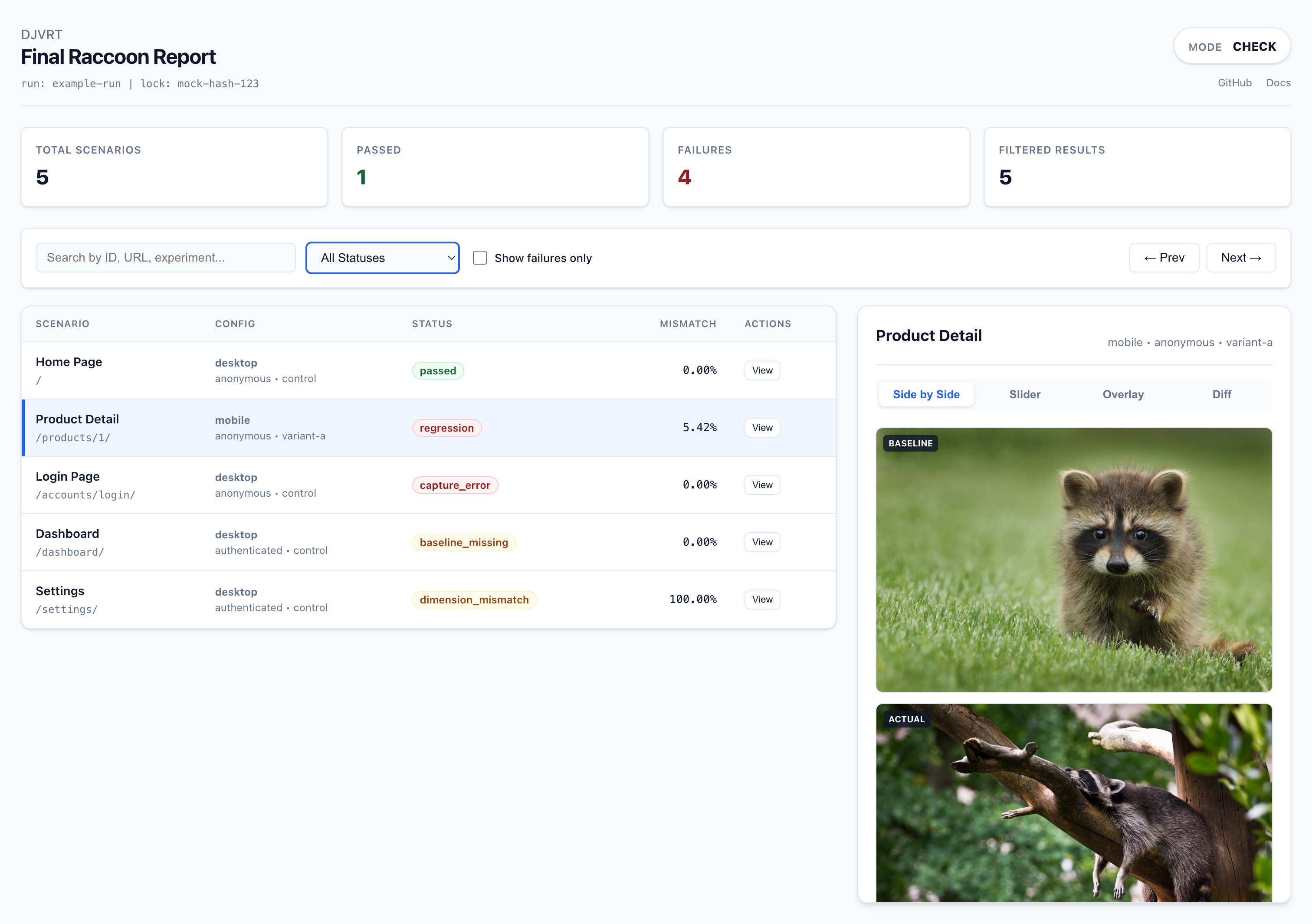
djvrt generates a modern, clean HTML report for reviewing test results. This UI is designed to help you quickly identify and analyze visual regressions.
Comparison Modes
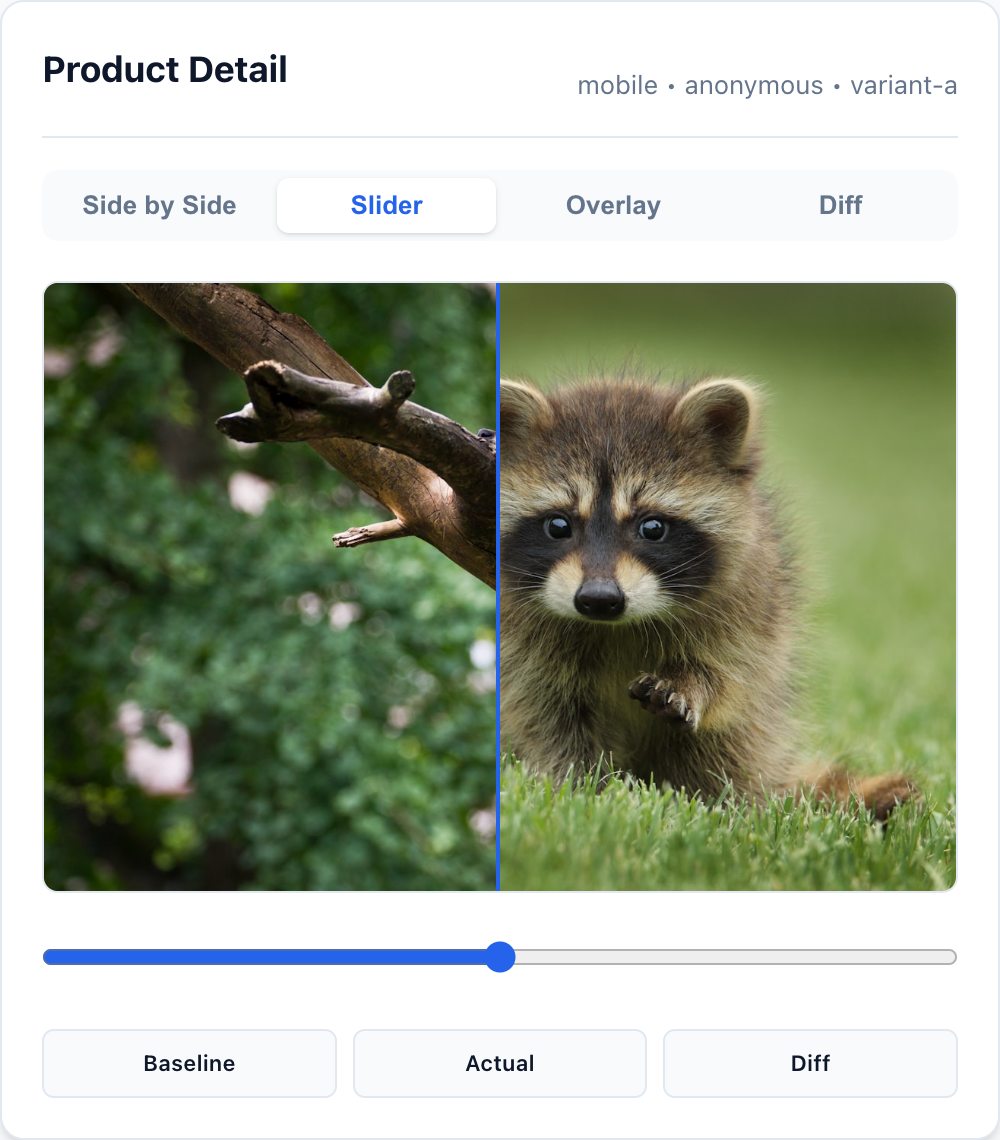
When inspecting a regression, you can switch between several visualization modes to understand what changed:
- Side by Side: View the baseline and actual images next to each other.
- Slider: Use a draggable vertical line to reveal the difference between images in real-time.
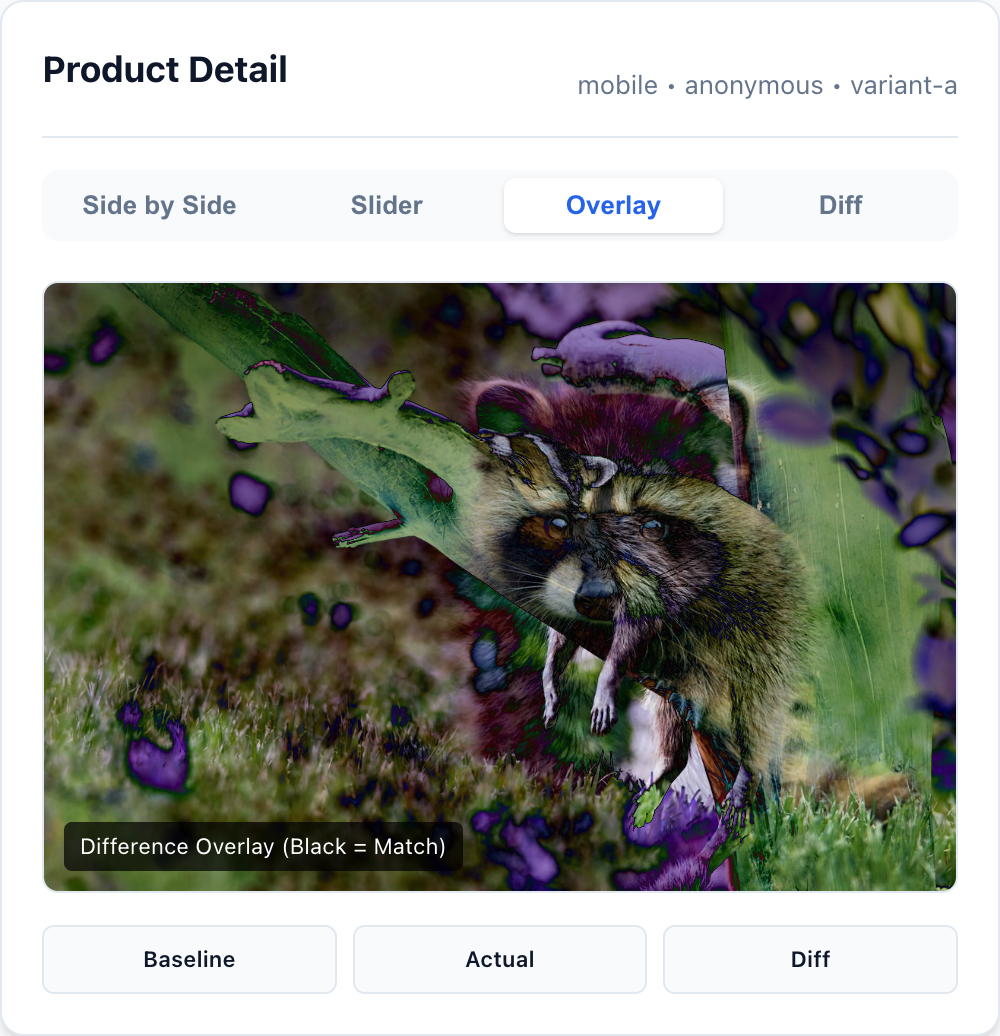
- Overlay: Superimpose the two images using a
differenceblend mode. Matching pixels appear black, while any changes are highlighted in vibrant colors.
- Diff: View a pre-generated heatmap where differences are highlighted in red.
Features for Large Suites
- Fast Filtering: Instantly search by scenario ID, URL, or experiment name.
- Status Toggles: Filter to see only regressions, capture errors, or missing baselines.
- Keyboard Navigation: Use
jandkto jump between failures quickly. - Custom Branding: Use the
--titleflag withcheckorreportto name your test runs.
The approve Command
If a check run fails due to an intentional change, you don't need to re-run baseline. Instead, you can use the approve command. This command promotes the "actual" images from a specific check run to become the new baseline, saving you time and effort.